What Counts as an Approved App for Clinical Communication?
An app is not approved for clinical communication just because it is popular, encrypted, or available in your phone’s app store. It counts as an approved work application only when your employer has authorised its use for the particular information and task involved—and the device and settings meet local requirements.
Start with your employer’s bring-your-own-device (BYOD) and device policy. Then check which clinical messaging tools and other systems are authorised for patient or organisational data. Finally, look at how your device handles notifications, screen previews, and personal apps. These details matter: a secure messaging app can still expose information if a message appears on an unlocked screen in a public place.
This guide explains the practical checks to make. It draws on the Information Commissioner’s Office (ICO) guidance on working securely and working from home securely. The ICO provides information about data protection; your employer remains responsible for setting local rules and approving systems for your organisation.
Start with your employer’s device policy
Before installing or using a clinical messaging tool, find out whether you are allowed to access work information on your device at all. Some employers permit personal phones under a BYOD arrangement. Others require a work-issued device, managed work profile, or specific security controls. A team’s informal habit is not a substitute for an approved policy.
Look for the current policy on your intranet or ask your manager, IT service desk, information governance team, or data protection officer. If you cannot find a clear answer, do not assume that a colleague’s setup applies to you. Ask before sending patient or organisational information.
Check these points before using a personal device
- Device eligibility: Is your phone’s operating system and version supported?
- Required controls: Must you use a passcode, biometric unlock, encryption, automatic screen locking, or remote-wipe capability?
- Work access: Is a managed work profile, mobile device management (MDM), or particular sign-in method required?
- Personal-device conditions: Can your employer remove work data or restrict access if the device is lost, compromised, or no longer compliant?
- Reporting: Who must you contact, and how quickly, if the device is lost or patient information is sent to the wrong person?
These controls are not just technical housekeeping. They help protect access to information and support your organisation’s data-protection obligations. The ICO’s guidance on working securely and working from home securely is useful background, but it does not approve an individual phone, app, or hospital system for you.
Approved means authorised for this purpose
The phrase approved app can be misleading. Approval is not a permanent badge that follows an app everywhere. An organisation might approve one tool for staff scheduling but not for patient details, or approve a clinical platform only when accessed through a managed device. The question is not simply “Is this app secure?” It is “Has my employer authorised this app, on this device, for this information and this task?”

Clinical messaging tools should be assessed in context. A tool may need to support appropriate access controls, account management, secure handling of information, and retention or audit arrangements that fit the organisation’s requirements. Your employer—not an individual clinician—should determine whether those arrangements are suitable and how the tool must be configured.
Do not treat the following as proof of approval:
- The app is widely used by healthcare staff.
- It is available in an official app store.
- It says messages are encrypted.
- A colleague or manager has sent patient information through it.
- You can create a free account with your work email address.
- The conversation is in a private group or disappears after a set time.
Those details may be relevant to an assessment, but they do not replace an organisational decision. In particular, a private group is not automatically private in the data-protection sense. Messages can be forwarded, screenshotted, backed up, displayed in notifications, or retained in ways staff may not expect.
Use the approved route for the information
Use the system your employer has designated for the job: for example, the approved clinical record, messaging platform, phone system, or incident-reporting route. If the task is urgent and the usual system is unavailable, follow your organisation’s downtime or escalation procedure. Do not improvise by switching to a personal messaging account or email address.
Also check what hospital policy clinical apps information is appropriate to send. Even on an approved platform, share only what is needed for the recipient to act. Confirm the recipient and channel before sending, especially when choosing a contact from an autocomplete list or a similarly named group.
Situation Practical check Safer action You need to message a colleague about a patient Is this platform approved for patient information, and is this the correct recipient? Use the organisation’s approved clinical messaging route and share only necessary details. A familiar consumer chat app is already on your phone Does local policy authorise it for this purpose? If approval is unclear, do not send clinical or organisational information through it; ask your manager or information governance team. The approved platform is unavailable Is there a downtime or escalation procedure? Use that procedure rather than switching to a personal account or unapproved service. You receive work information in a personal app Was that channel authorised, and does local policy explain what to do next? Do not forward it elsewhere. Seek advice on reporting and handling the message.Keep entertainment and clinical work separate
Many people use one phone for work and personal life. That does not mean the two should be mixed without boundaries. Keeping entertainment separate from clinical work reduces the chance of a wrong-account post, accidental sharing, distracting alerts, or work information being copied into personal backups and apps.
Where your employer provides a managed work profile or container, use it as instructed. It can help separate work apps and data from personal apps, but it is not a substitute for following policy. A folder labelled “Work” on your home screen is only an organisational aid; it does not create a security boundary or make the apps inside it approved.
Practical separation steps
- Install work apps only through the route specified by your employer, such as a managed app catalogue.
- Use your work identity for approved work systems and avoid signing into work services through personal accounts.
- Do not copy patient details into personal notes, photo galleries, messaging apps, or cloud storage.
- Check the share sheet carefully before sending or saving a document. A quick tap can send a file to the wrong app or contact.
- Keep work and personal group chats distinct, and check the conversation name before posting.
- Do not use personal email as a workaround when a work system is inconvenient or unavailable.
If you accidentally share information through the wrong app, do not try to quietly fix it by deleting a message and assuming the issue is resolved. Follow your employer’s incident-reporting procedure promptly. The message may have been delivered, copied, or backed up, and the organisation needs to assess what happened.
Protect lock-screen notifications and previews
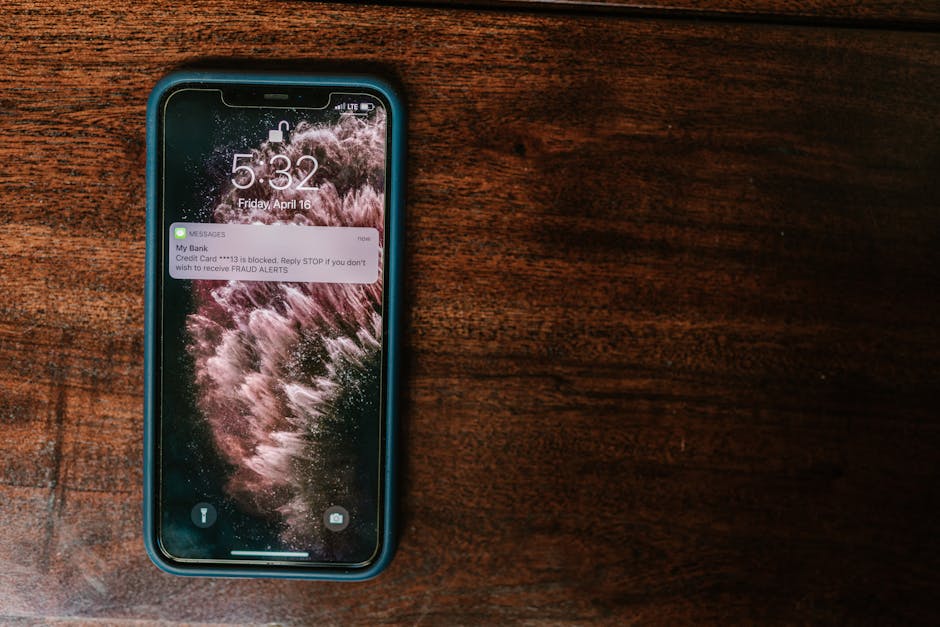
Notification privacy is easy to overlook because it is controlled by both the app and the phone’s operating system. A clinical message may appear on a lock screen, smartwatch, car display, or paired device. Someone nearby may see a patient’s name, appointment detail, or other sensitive information even though your phone itself is locked.
Test the settings on your actual lock screen before relying on them. Menu names vary by phone and operating-system version, and an app may have its own preview setting as well as the system-wide notification setting. A setting that looks correct in a menu does not prove what appears when a real message arrives.
Run a quick notification check
- Open the phone’s notification settings and find the approved clinical messaging app.
- Choose the most private preview option allowed by your employer—for example, hiding message content while keeping a generic alert, if available.
- Check the app’s own settings for message previews, notification content, or sensitive-content controls.
- Lock the phone and send a test message from an authorised test account or ask your IT team how to test safely. Do not use real patient information for a test.
- Look at what appears on the lock screen. Check whether the sender, message text, or other details are visible.
- Repeat the check for paired devices, such as a watch, if work alerts can appear there.
- Recheck after operating-system or app updates, or if you change notification settings.
If your employer requires notifications to remain enabled for urgent work, do not disable them without checking the local process. Instead, ask whether content previews can be hidden while alerts remain active, and how staff should manage urgent messages securely.
What to do when approval is unclear
When you cannot confirm whether an app is authorised, pause before using it for patient or organisational information. Check the approved-app list, device policy, or relevant procedure. If the answer is not there, ask your manager, IT service desk, information governance team, or data protection officer. Include the task you need to perform and the type of information involved; approval may differ by use case.
A useful question is: “Is this application approved for this information, on this device, for this purpose, and under what settings?” That is more actionable than asking whether an app is “secure.” Ask what to use instead if the answer is no or uncertain.
A quick pre-send checklist
- Is this device permitted for work access under my employer’s BYOD or device policy?
- Is this one of the approved work applications for the information and task?
- Am I signed in with the correct work account and sending to the intended recipient?
- Have I shared only the information the recipient needs?
- Are lock-screen previews and paired-device alerts set appropriately?
- If the usual service is unavailable, am I following the organisation’s downtime route?
The bottom line
Approved work applications are the systems your employer has authorised for defined work purposes—not simply apps that look trustworthy or Find out more are convenient. Follow the device policy first, use approved clinical messaging tools for patient and organisational data, and keep work activity separate from personal entertainment and accounts. Then test notification privacy on the locked device you actually use.
The ICO’s guidance on working securely and working from home securely can help you understand good data-protection practice. For a decision about a particular app, device, or message, follow your organisation’s current policy and ask its information governance or IT team. Local approval and the right configuration are what make an app policy compliant in your workplace.